Connect FlawPilot to Claude
This guide walks you through connecting FlawPilot to Claude in seven steps, each with a screenshot - from finding it in Claude's connector directory to running your first scan. It takes about two minutes, and needs no endpoint to paste and no API key.
Directory setup works in Claude Desktop and claude.ai. Claude Code uses the config file below.
Open the MCP overviewBefore you start
- A FlawPilot account - the free tier is enough to connect and run scans.
- Claude Desktop or claude.ai in a browser. (Claude Code has no directory - see the config section below.)
- Nothing else. Connecting from the directory needs no API key and no config file.
Steps to connect
Open Settings
Open Settings from the Claude sidebar. Everything you connect Claude to lives under the Customize group, in Connectors.
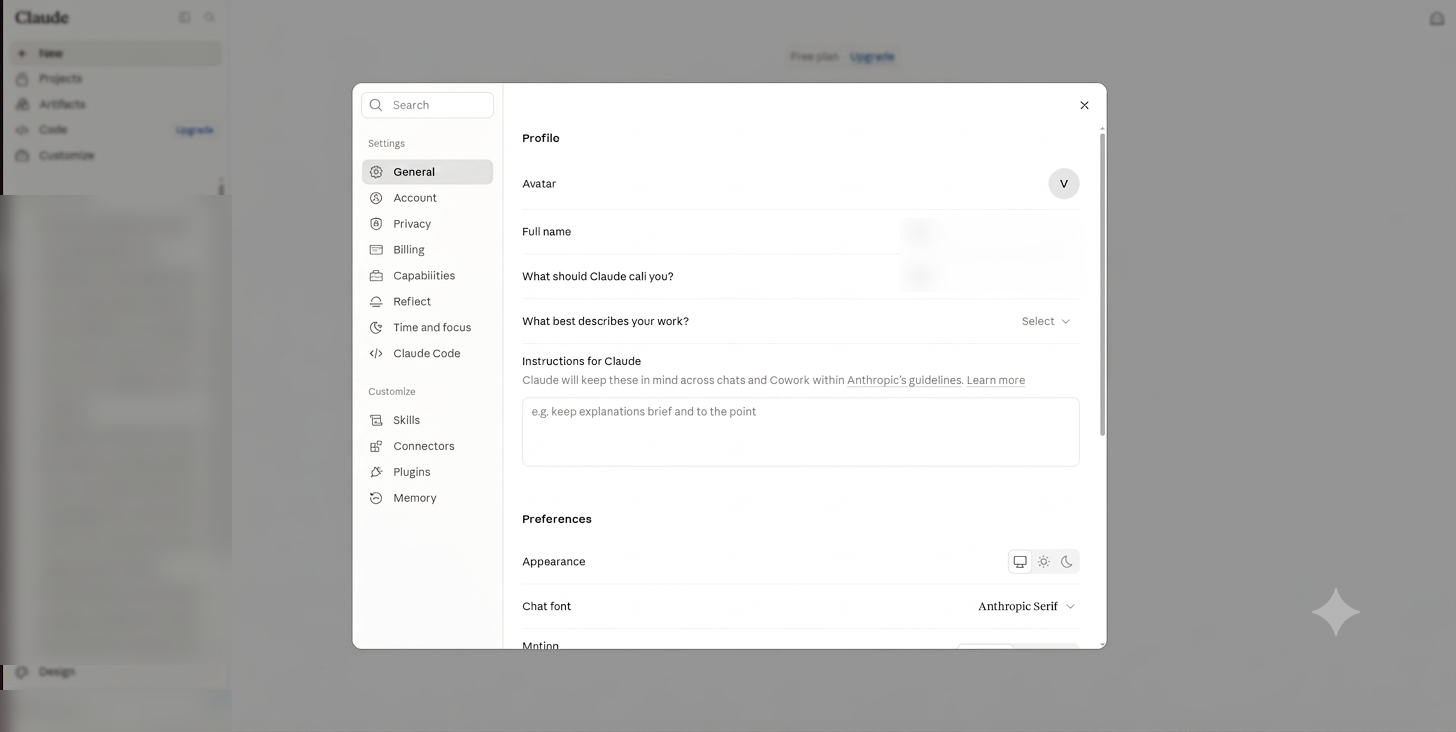
Settings opens on your profile - Connectors is in the left list. Open the connector directory
Choose Connectors, then browse the directory. Claude lists the connectors it already knows about - over two thousand of them.
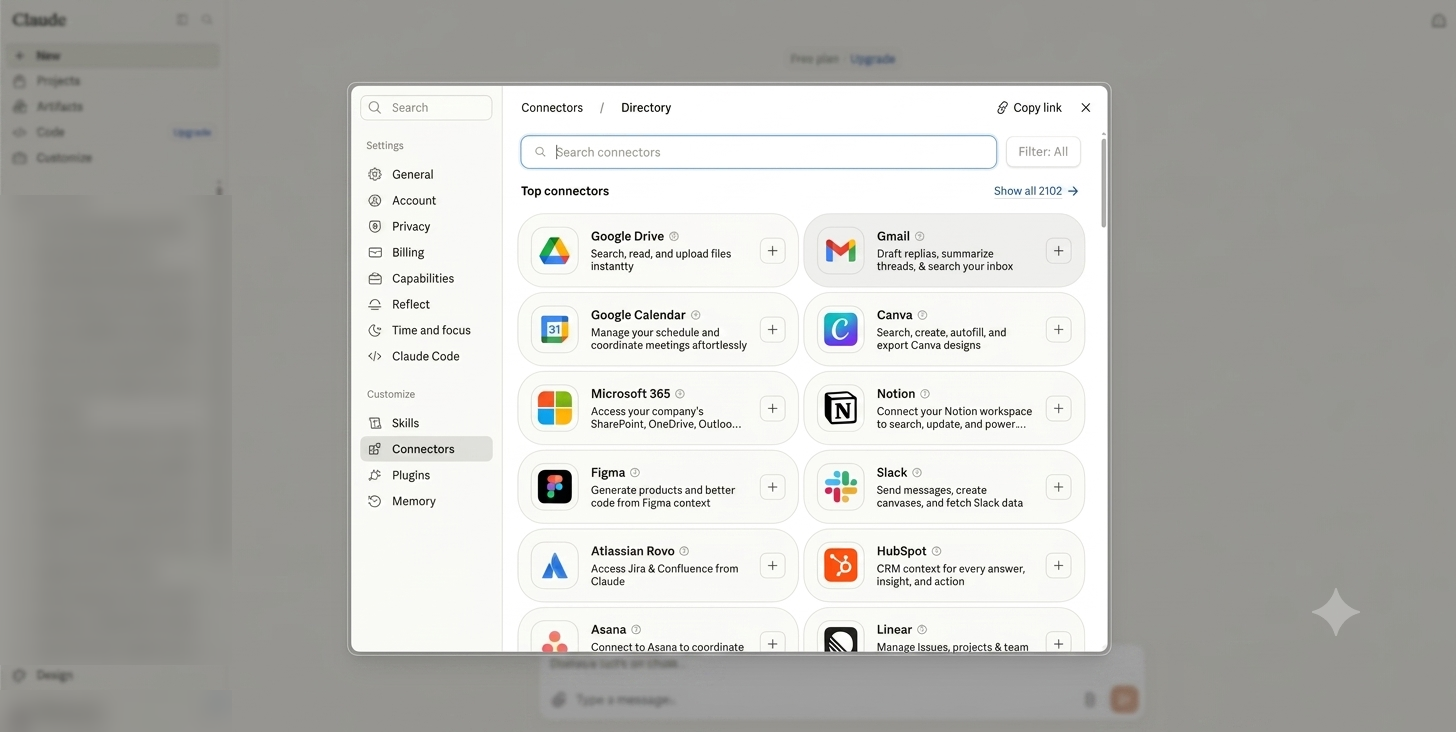
The directory: no URL to paste, just search it. Search for FlawPilot
Type "flawpilot" into the directory search. It appears with a Community label, which is how Claude marks connectors it has reviewed automatically but does not verify itself.
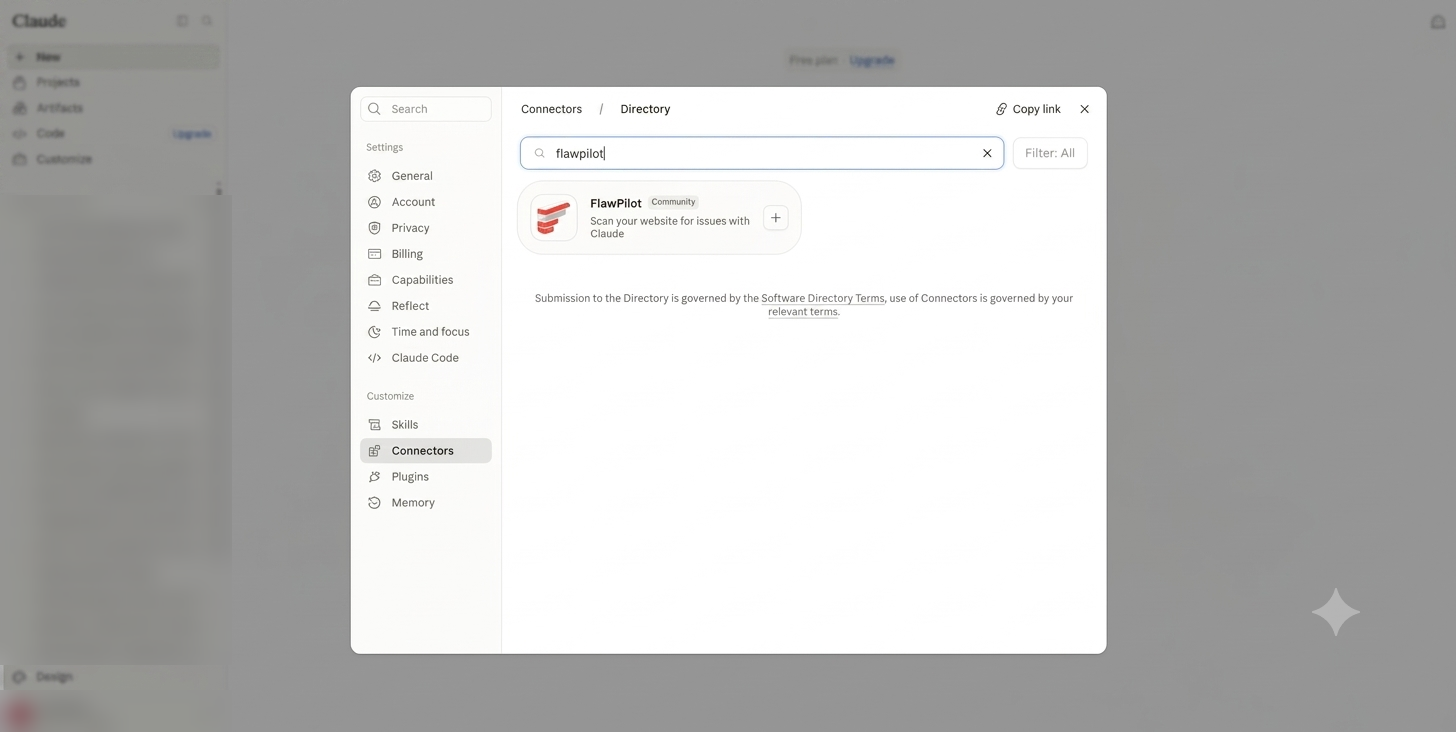
Searching "flawpilot" surfaces the listing. Choose Connect to Claude
The listing describes what the connector does and lists its tools - get_scan_status, list_projects, and the scan tools. Choose Connect to Claude.
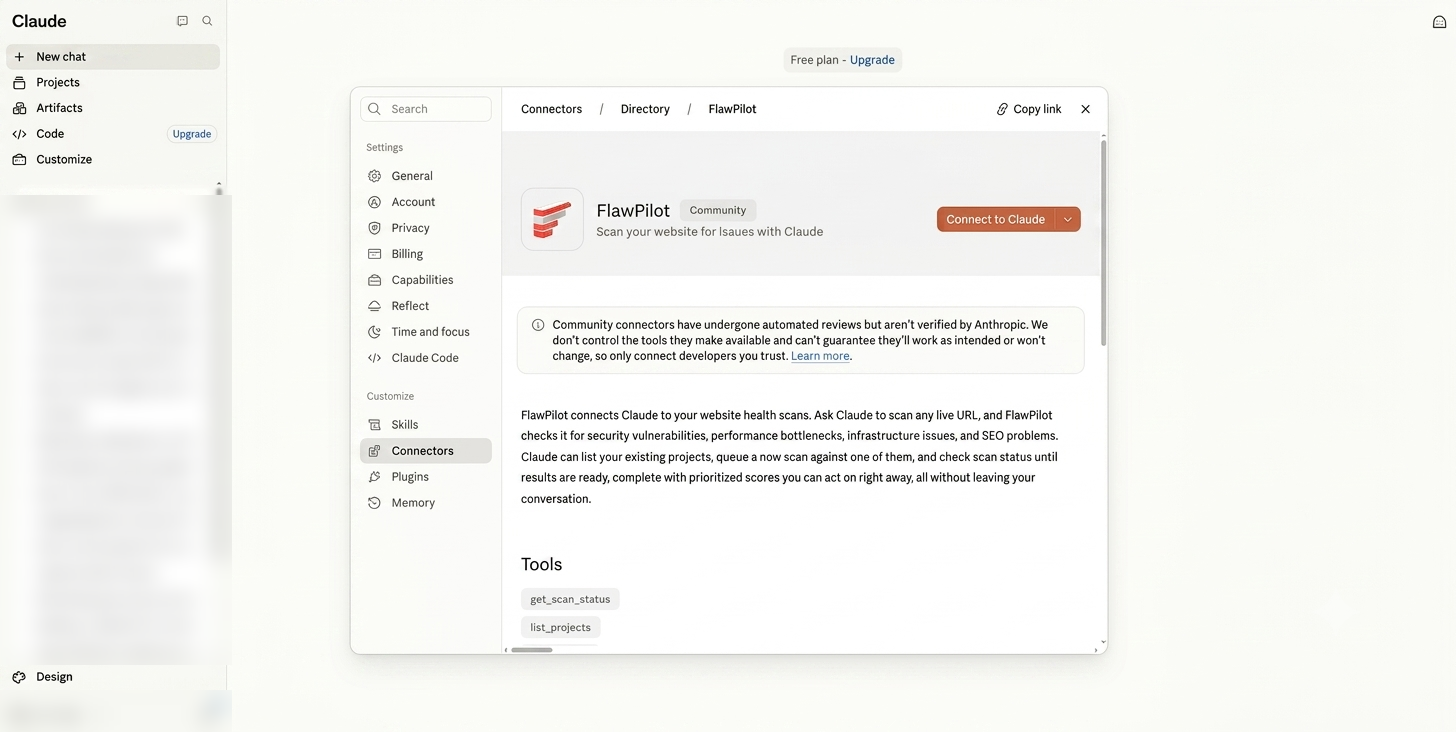
Review the tools, then Connect to Claude. Approve your workspace
Sign in to FlawPilot and pick the workspace Claude should work in. It will be able to run scans and read findings for that workspace only.
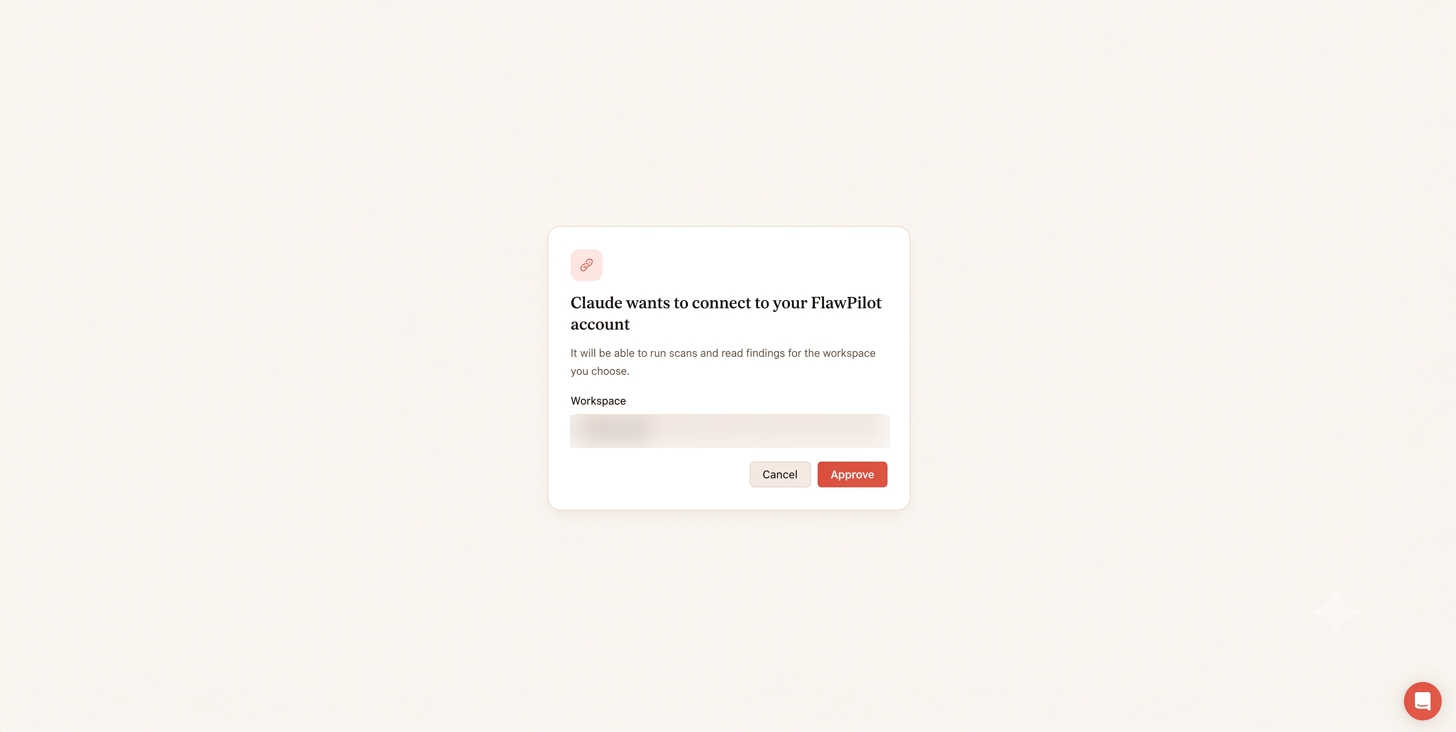
Scope is limited to the workspace you choose here. Confirm it connected
The listing switches to Connected and a confirmation appears. The connector is now attached to your account.
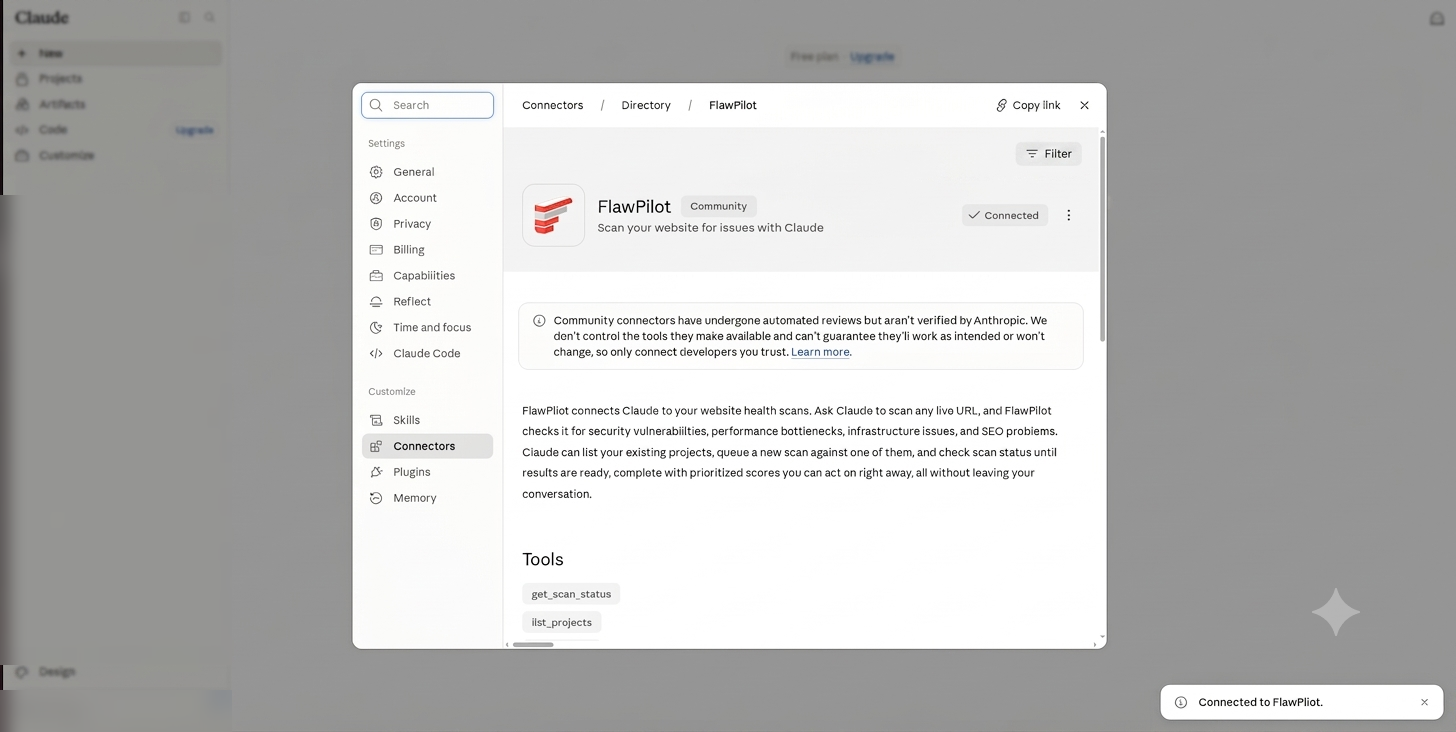
Connected - the tools are now available to Claude. Ask for a scan
Start a NEW conversation - Claude loads a connector's tools when the chat begins, so one that was already open will not pick it up. Then ask in plain language.
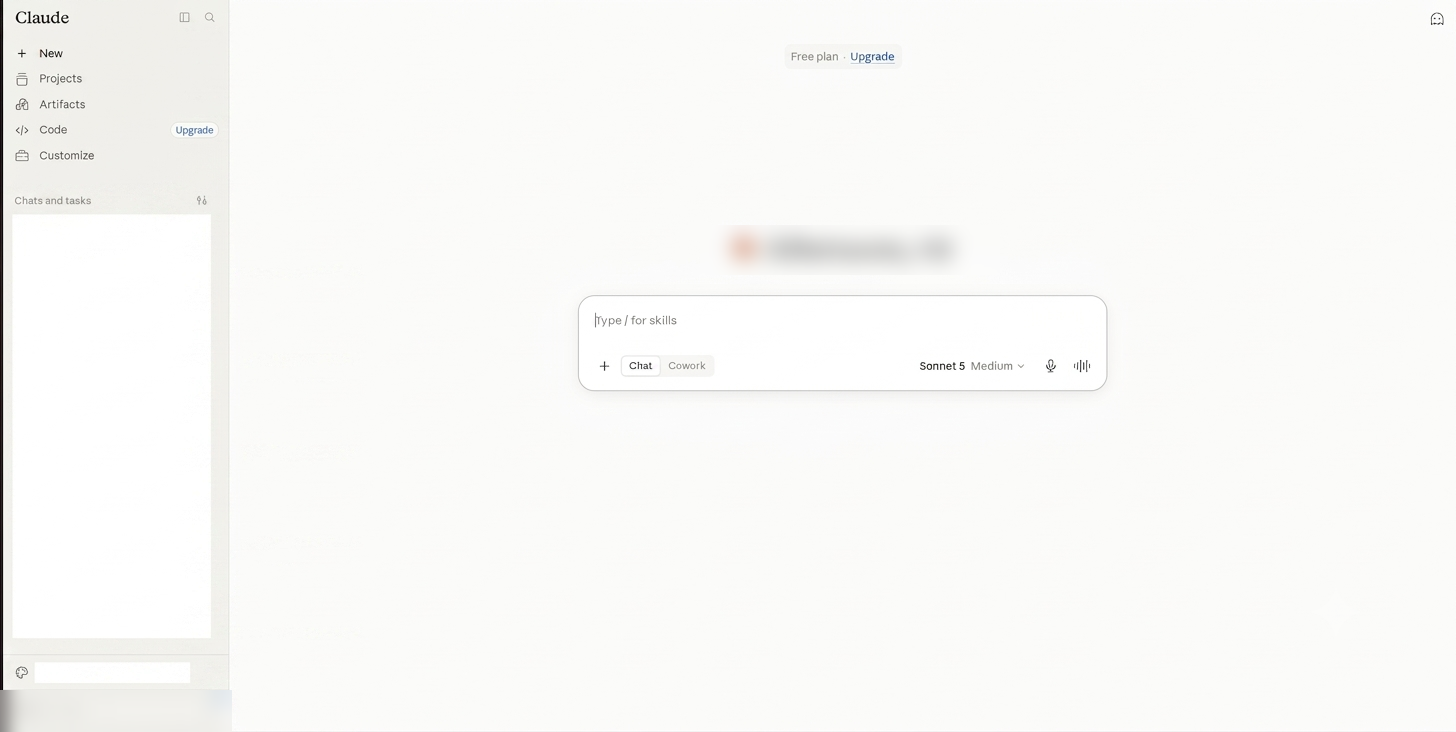
Start a new chat, then ask Claude to scan a site you own.
Connecting a client with no directory
Claude Code and other MCP clients point at the server directly with a config file. Create an API key in your dashboard, then add the server to your MCP config. Swap YOUR_API_KEY for the real value and never commit it.
{
  "mcpServers": {
    "flawpilot": {
      "type": "http",
      "url": "https://mcp.flawpilot.com/mcp",
      "headers": {
        "Authorization": "Bearer YOUR_API_KEY"
      }
    }
  }
}
The same key works for the REST API and CI, so treat it like any other secret.
Try it in a conversation
Once connected, plain language is enough - Claude picks the right tool for you.
- “Scan example.com with FlawPilot and summarise the highest-severity findings.”
- “What did the last FlawPilot scan say about my security headers?”
- “Re-run the SEO checks on example.com and tell me what changed.”
If something does not work
- The connector is listed but no tools show up
- Start a new conversation. Claude loads a connector's tools when the conversation begins, so an existing chat will not pick up a server you just added.
- Authorisation fails or loops back
- Check you are signed in to FlawPilot in the same browser Claude opened, then try again. A blocked pop-up will also break the redirect.
- Scans start but return nothing
- A scan takes up to a couple of minutes. Ask Claude to check the scan status rather than starting a second scan for the same URL.
Connect another client
The same endpoint works with Cursor, VS Code, ChatGPT, and any other MCP-compatible tool.
See all clients