Connect FlawPilot to Gemini
This guide walks you through connecting FlawPilot to Google Gemini in eight steps, each with a screenshot - from finding Connected Apps to reading your first scan. It takes about two minutes, and needs one URL and no API key.
Custom connected apps live in the Spark tab, which is currently in beta.
Open the MCP overviewBefore you start
- A FlawPilot account - you choose which workspace Gemini may use during setup.
- A Google account with the Spark tab available in Gemini.
- The FlawPilot MCP endpoint, which is the only thing you paste. No API key, no config file.
If you cannot see Spark or Connected Apps
Custom connected apps are part of Gemini Spark, which is in beta and rolling out gradually - availability depends on your Google account and, on a Workspace plan, on whether an admin has enabled it. If Spark is missing, the FlawPilot endpoint itself is unchanged and any other MCP client will still connect.
Steps to connect
Open the Spark tab
Gemini splits into two tabs. Custom connections live under Spark, not Chat - if you are looking at the Chat tab you will not find Connected Apps.
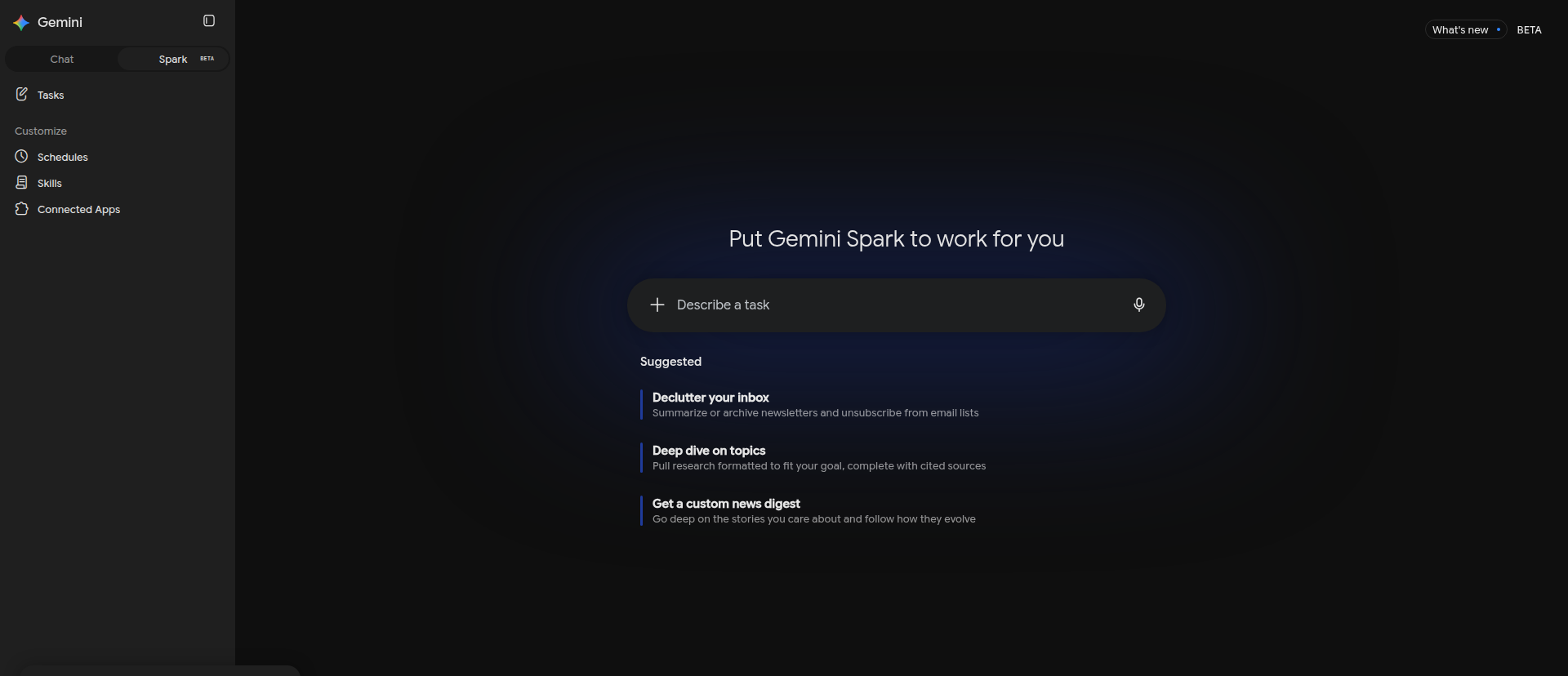
Spark, not Chat. Connected Apps sits under Customize. Choose Connected Apps
Connected Apps lists what Gemini can already reach. Scroll past the apps Google ships to the Custom apps for Spark section at the bottom.
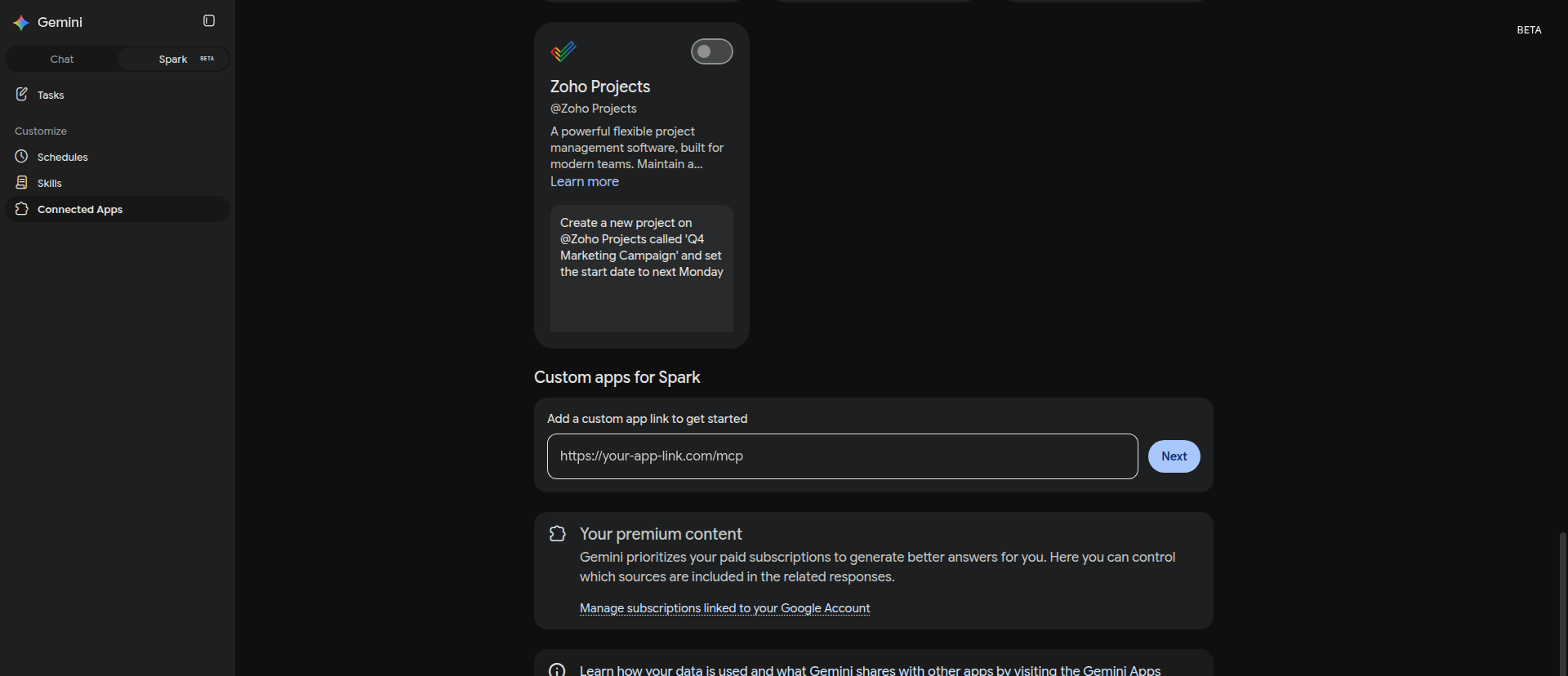
Google’s own apps come first - custom apps are below them. Paste the FlawPilot endpoint
Paste the MCP endpoint into the custom app link field and choose Next. This is the only value you have to type anywhere in this guide.
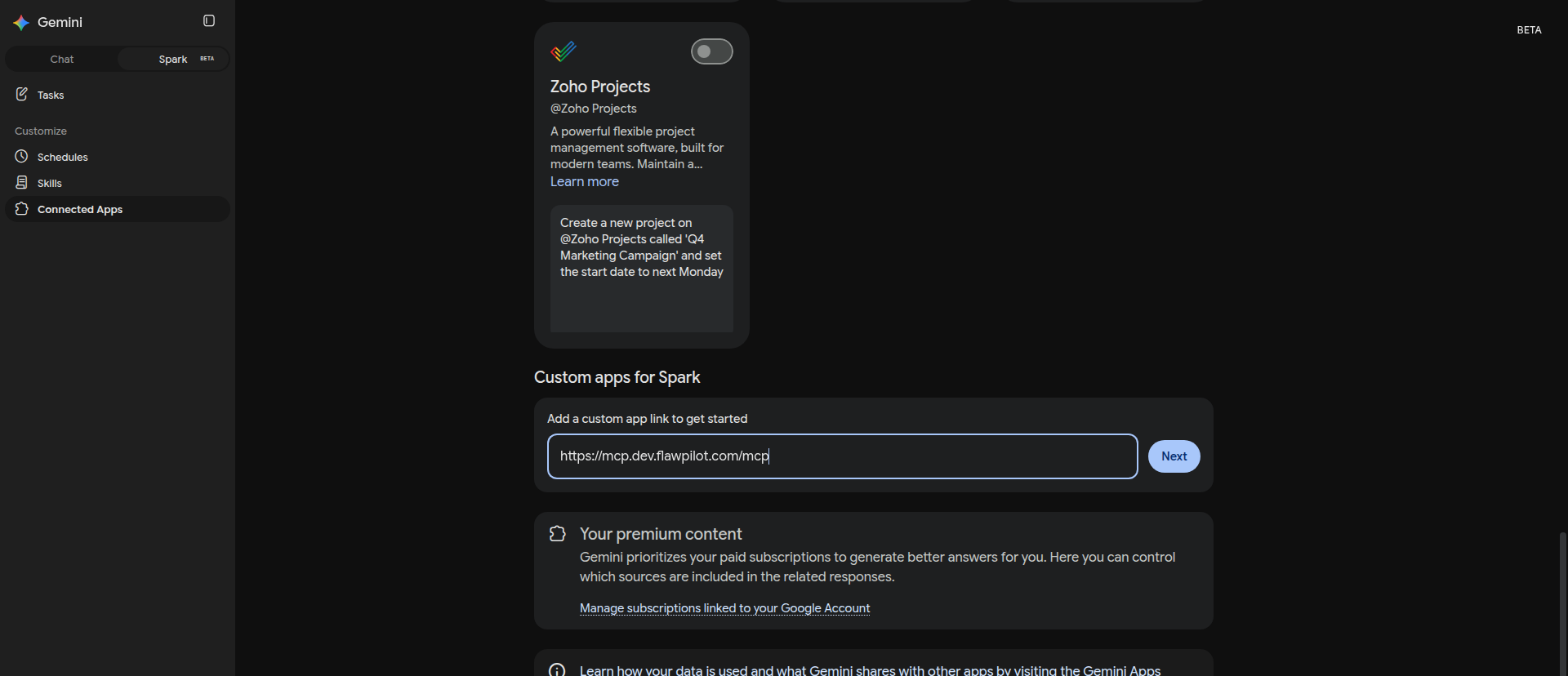
One URL. There is no API key to generate. Confirm the connection
Gemini shows what it is about to connect to and warns that the app has not been reviewed by Google - expected for any custom MCP server. Check the URL reads flawpilot.com, then choose Next.
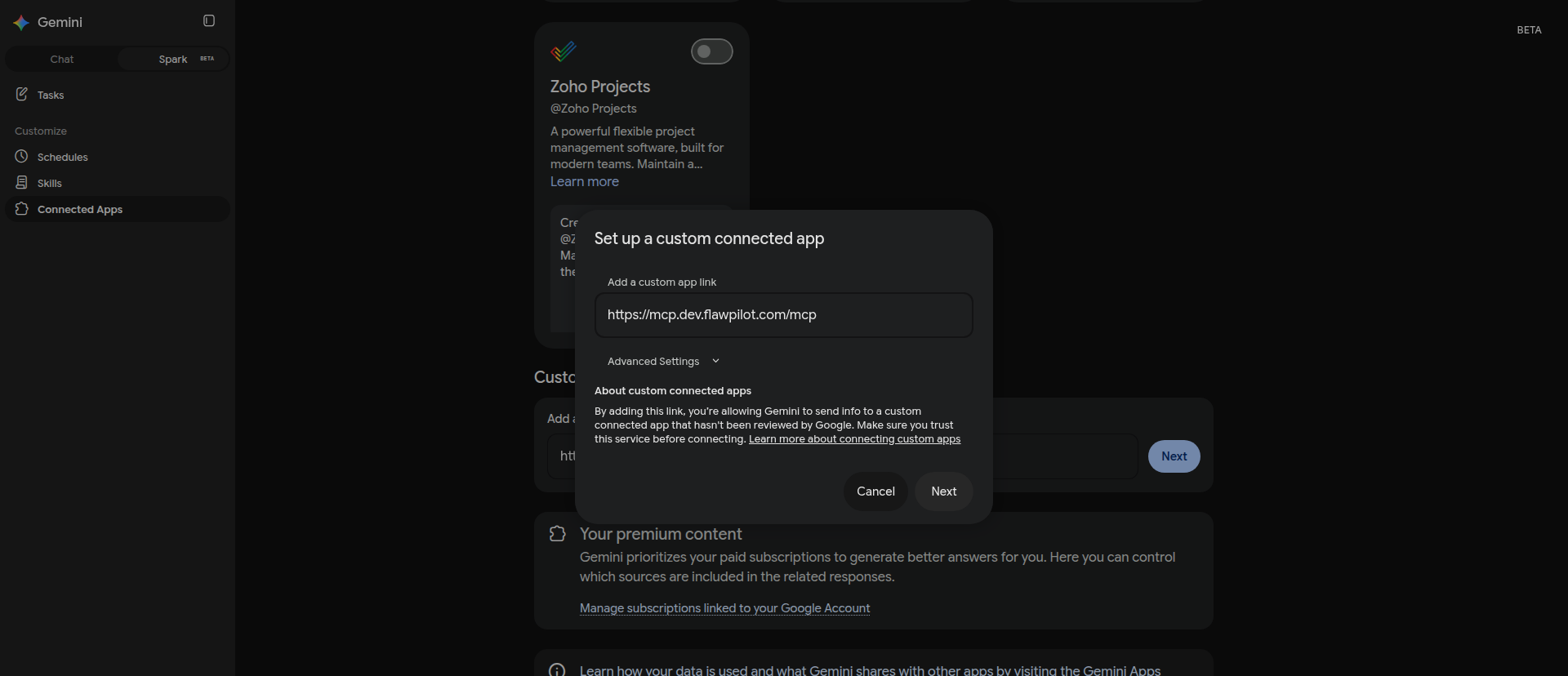
Read the URL before approving - this warning appears for every custom app. Approve the FlawPilot connection
FlawPilot asks which workspace Gemini may act in. Pick the workspace whose projects you want to scan, then Approve. This is the step that authorises Gemini, and it is the only place your FlawPilot account is involved.
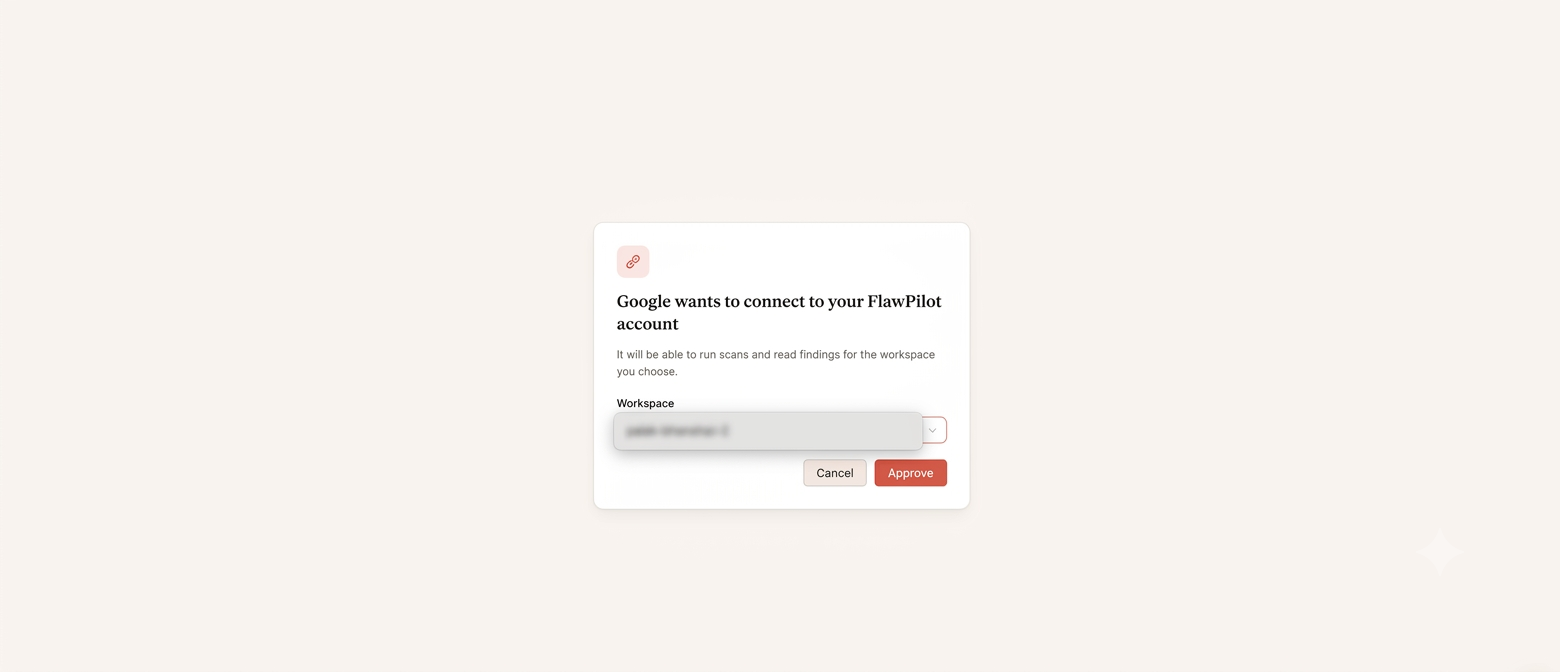
Gemini can only reach the workspace you choose here. Name it and connect
Gemini reads the tool list from the server and shows what it can do - ten tools, covering quick scans, code scans and Site Health. Keep the name or change it, then choose Connect.
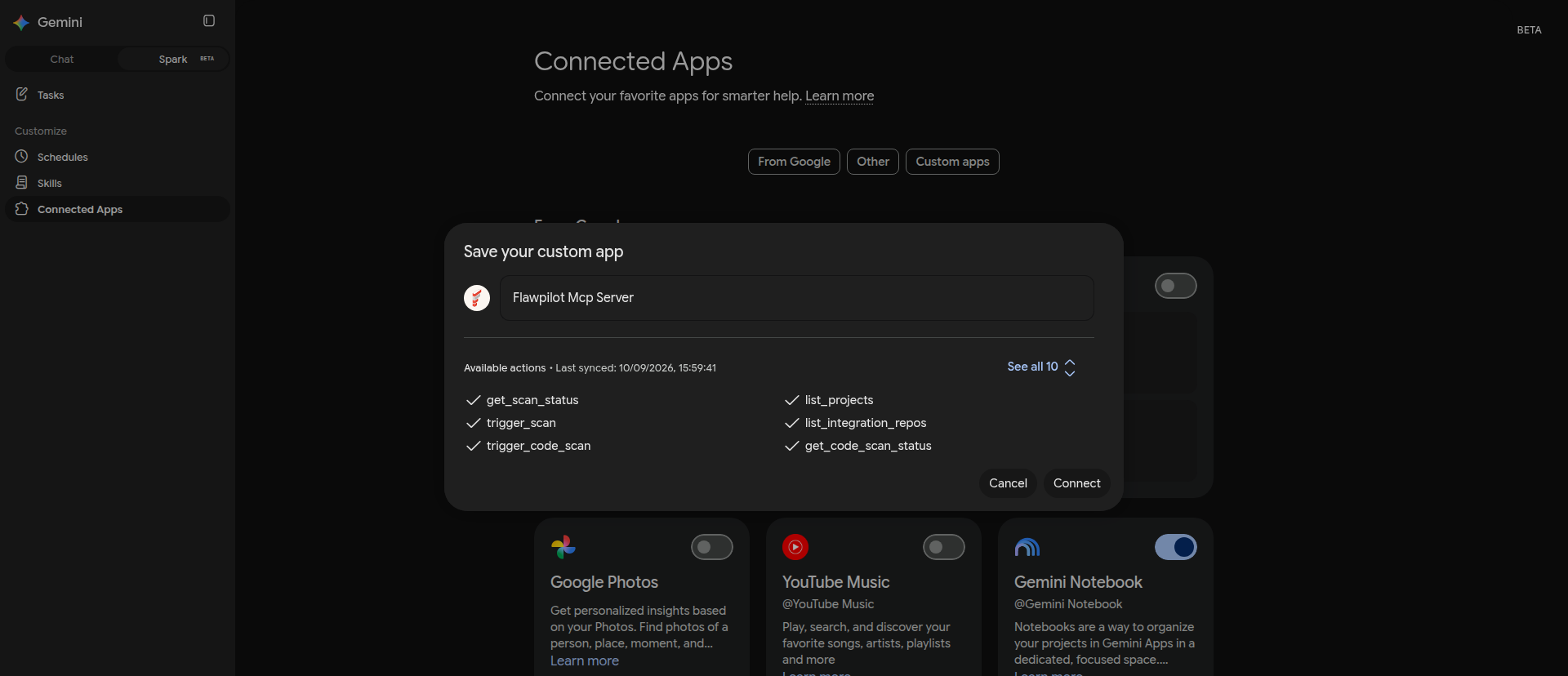
Ten tools, read straight from the server. Nothing to configure. Check it is on
FlawPilot now appears under Custom apps for Spark with its toggle on. If the toggle is off, Gemini will not use it.
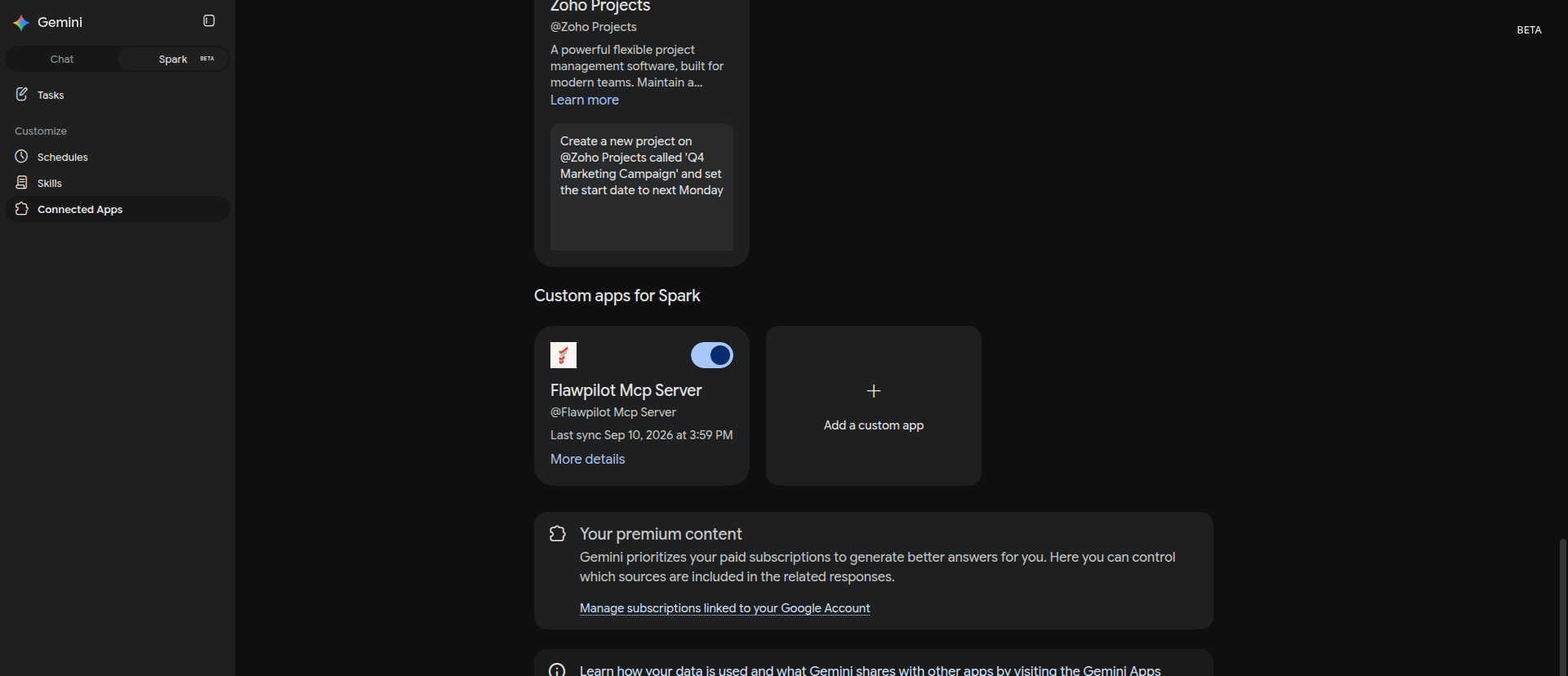
Toggle on means Gemini can use it. That is the whole setup. Ask for a scan
Mention the connector and say what you want. Gemini asks for anything it needs rather than guessing - here it lists your projects and asks which URL, which project, which pillars, and where to send the report.
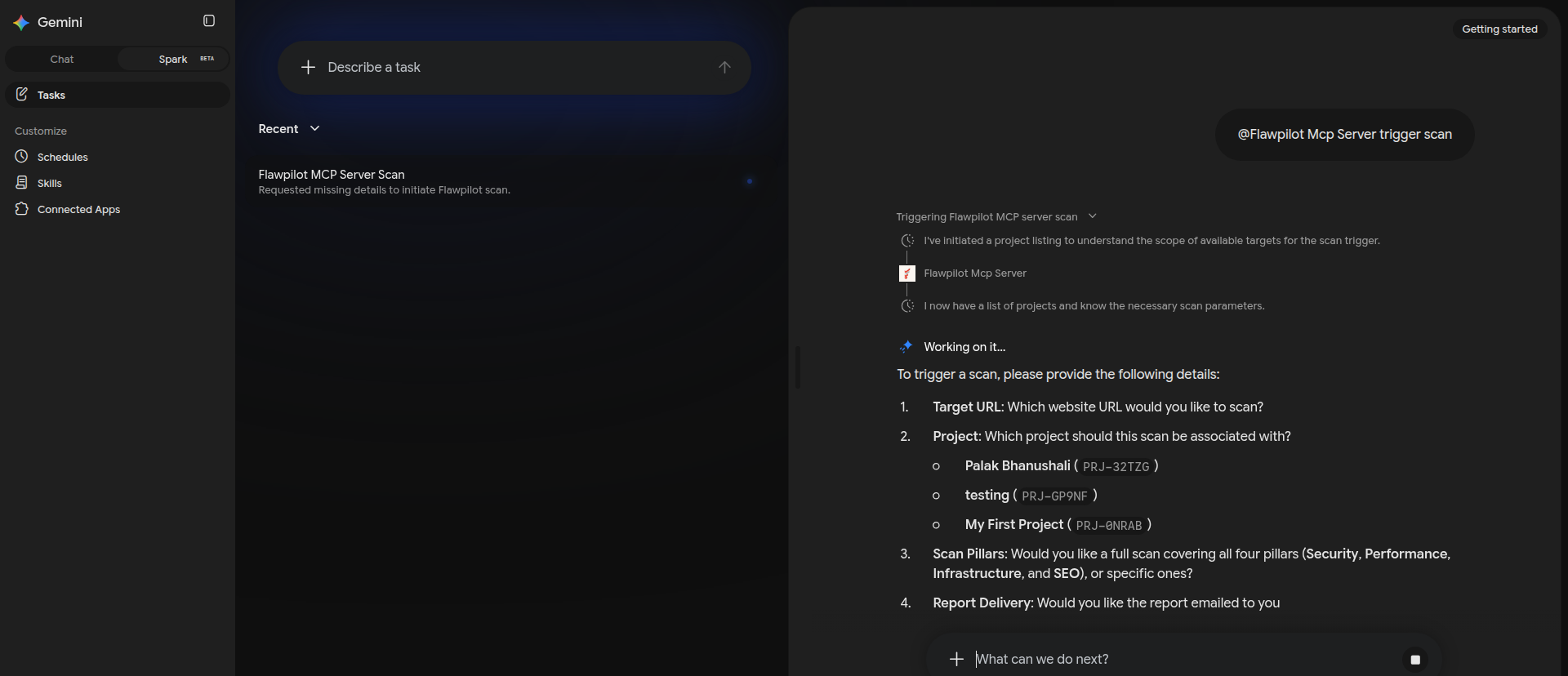
It asks rather than assumes - so a scan never runs against the wrong project.
Try it in a chat
With the connector on, mention it and ask in plain language.
- “@Flawpilot Mcp Server trigger scan”
- “Scan example.com on FlawPilot and tell me what to fix first”
- “Show me the status of my running FlawPilot scan”
If something does not work
- There is no Spark tab, or no Connected Apps
- Spark is in beta and rolling out gradually. On a Google Workspace plan an admin may need to enable it first. Until it appears, connect from another MCP client instead - the endpoint is the same.
- Gemini warns the app has not been reviewed by Google
- Expected. Google shows that for every custom connected app, reviewed or not. Check the URL reads flawpilot.com before approving.
- The tool list is empty, or fewer than ten actions appear
- Gemini reads the list from the server when you connect. Remove the app and add it again to re-sync - the card shows a Last sync time so you can tell whether it refreshed.
- Gemini answers without using FlawPilot
- Mention the connector by name at the start of your message, and check its toggle is on under Custom apps for Spark.
- It asks for a URL and project instead of just scanning
- That is deliberate. FlawPilot asks rather than assuming, so a scan never runs against the wrong project or the wrong site. Answer the questions and it continues.
Connect another client
The same endpoint works with Claude, ChatGPT, Cursor, VS Code, and any other MCP-compatible tool.
See all clients